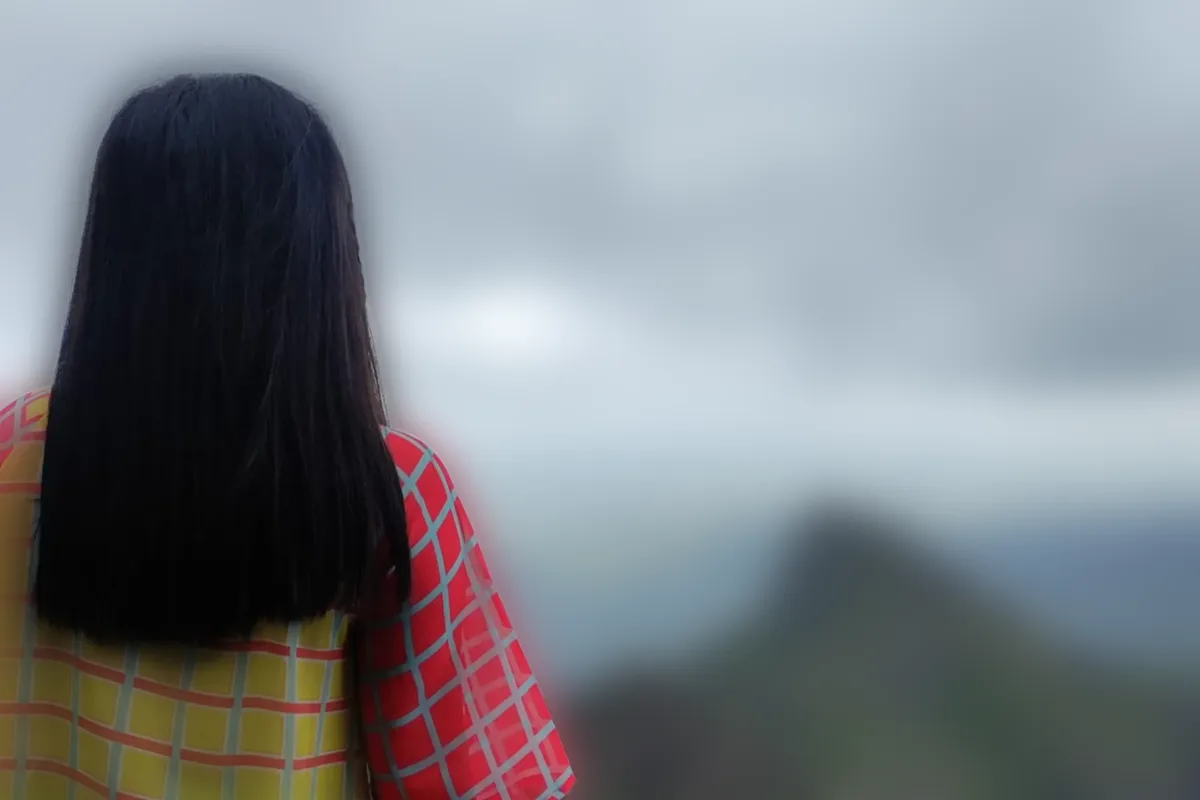
FreeBackground blur

Blur the background, keep the subject sharp

CutLift finds the subject with AI and softly blurs everything behind it, for a portrait-mode look from any camera. Free, unlimited, and your photos never leave your device.

Drop your photo hereIt opens in the editor. Nothing is uploaded. Choose a photoJPGPNGWebPHEICPSDRAW

No photo? Try ours

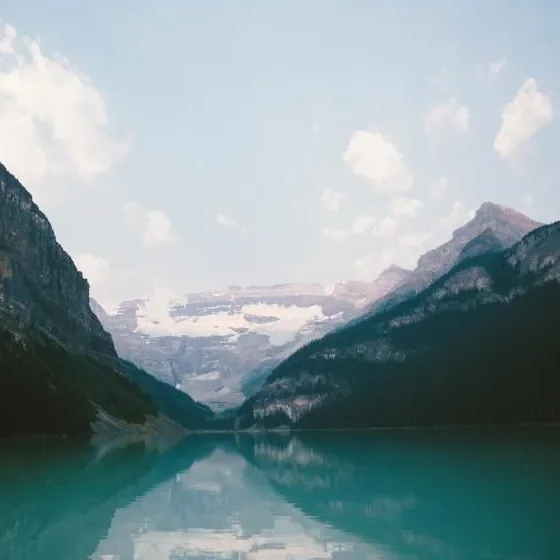
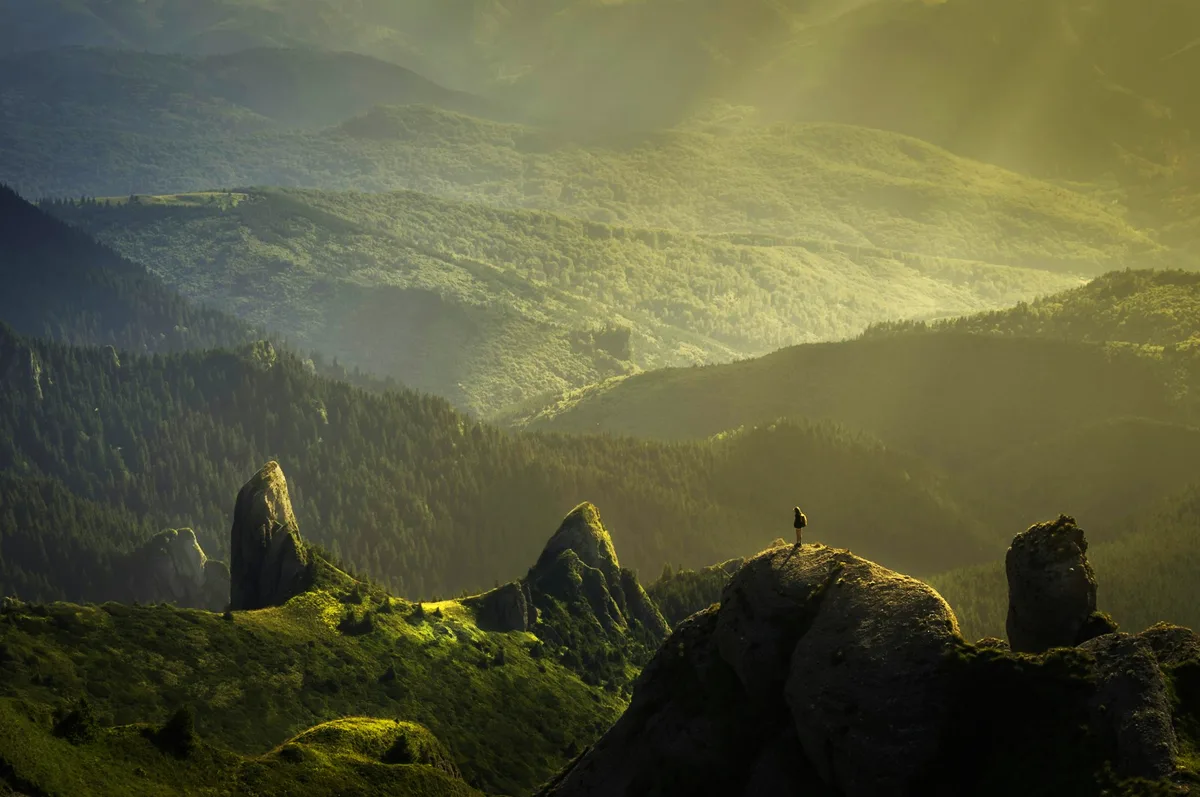
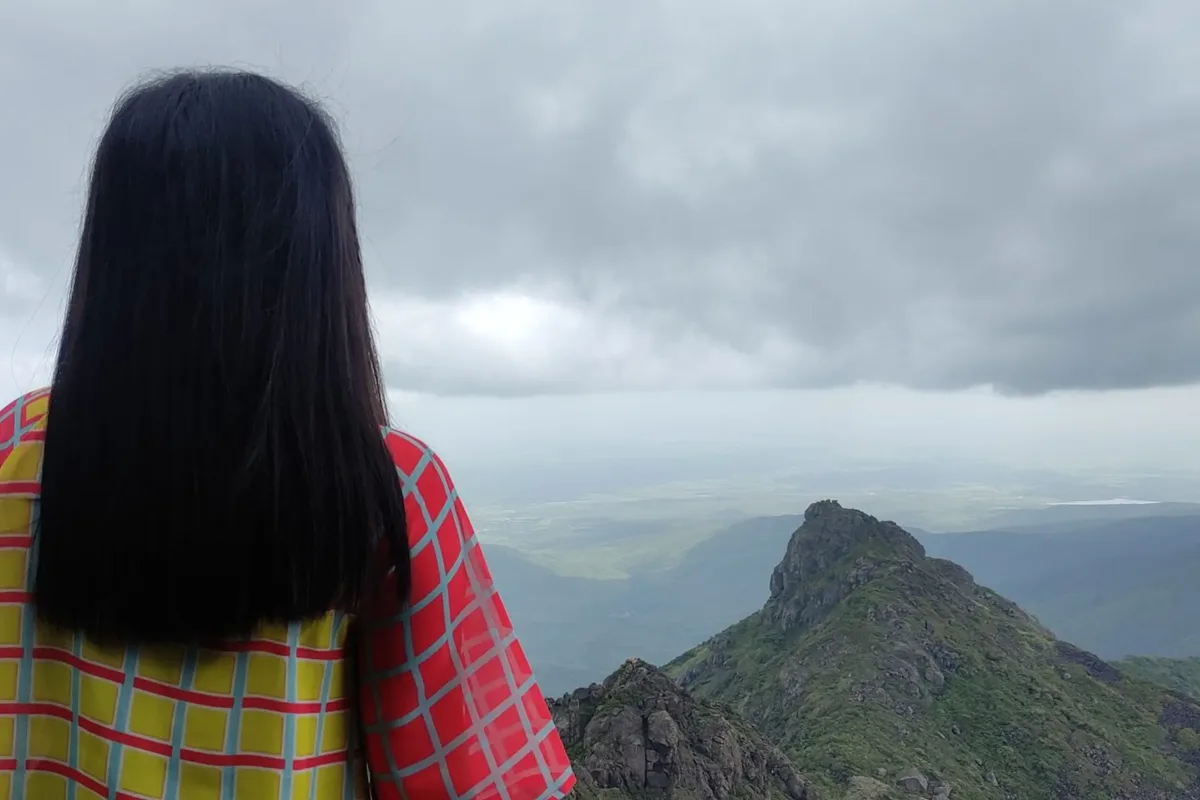
A woman on a mountain top, the valley behind her softly blurred
Live demo01 / 04

01Real depth, not a vignette

Two layers. One sharp.

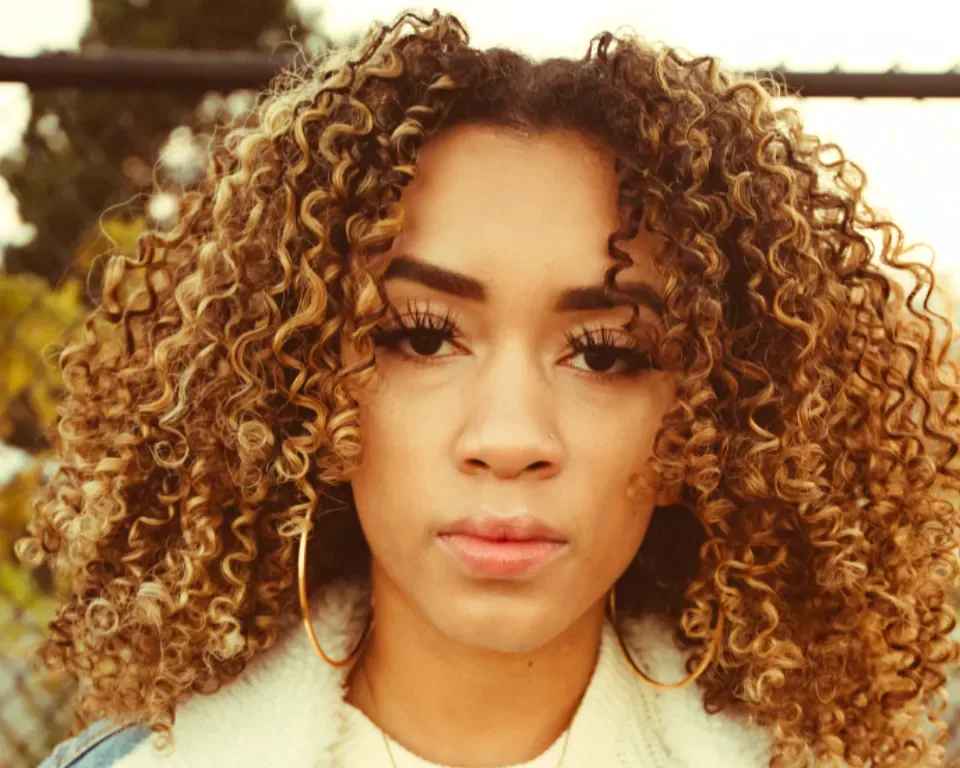
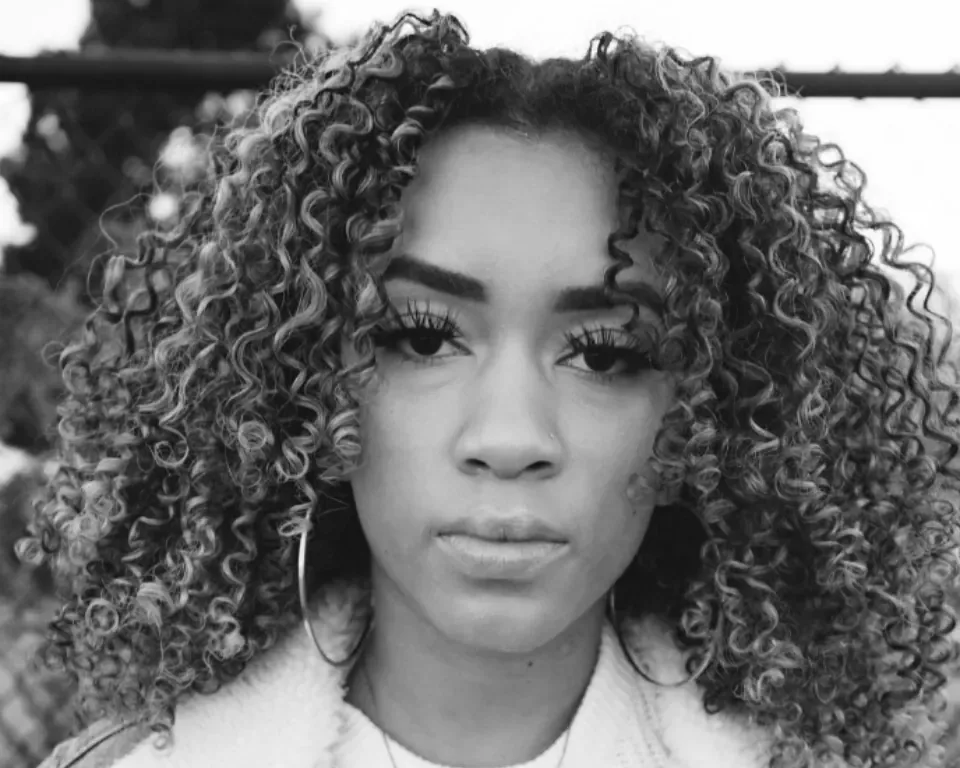
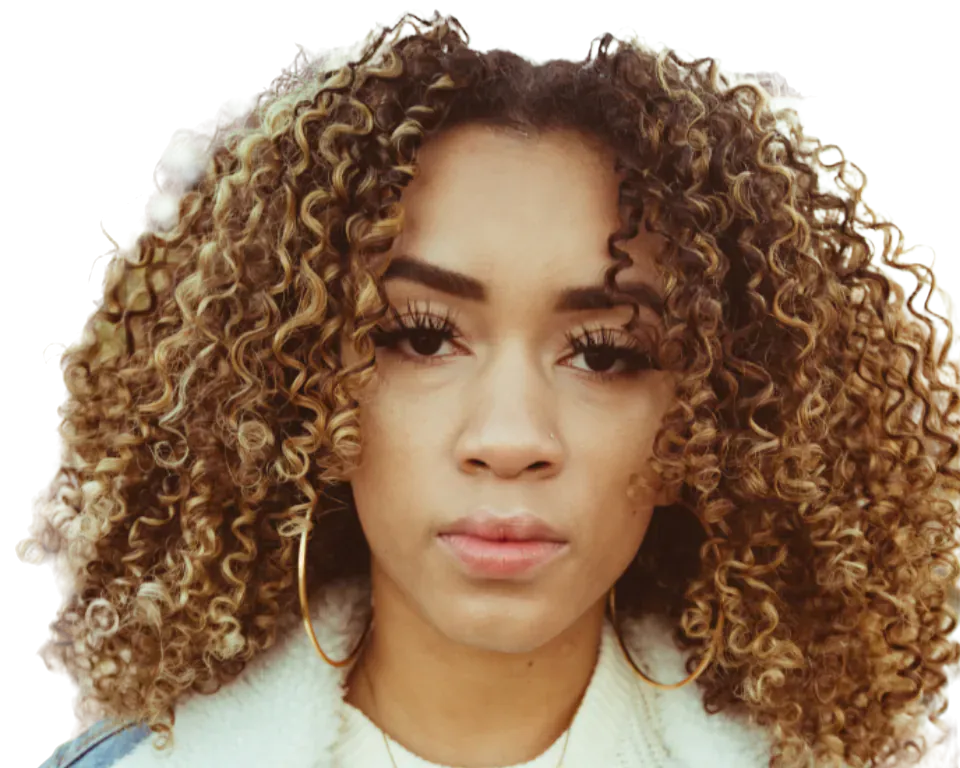
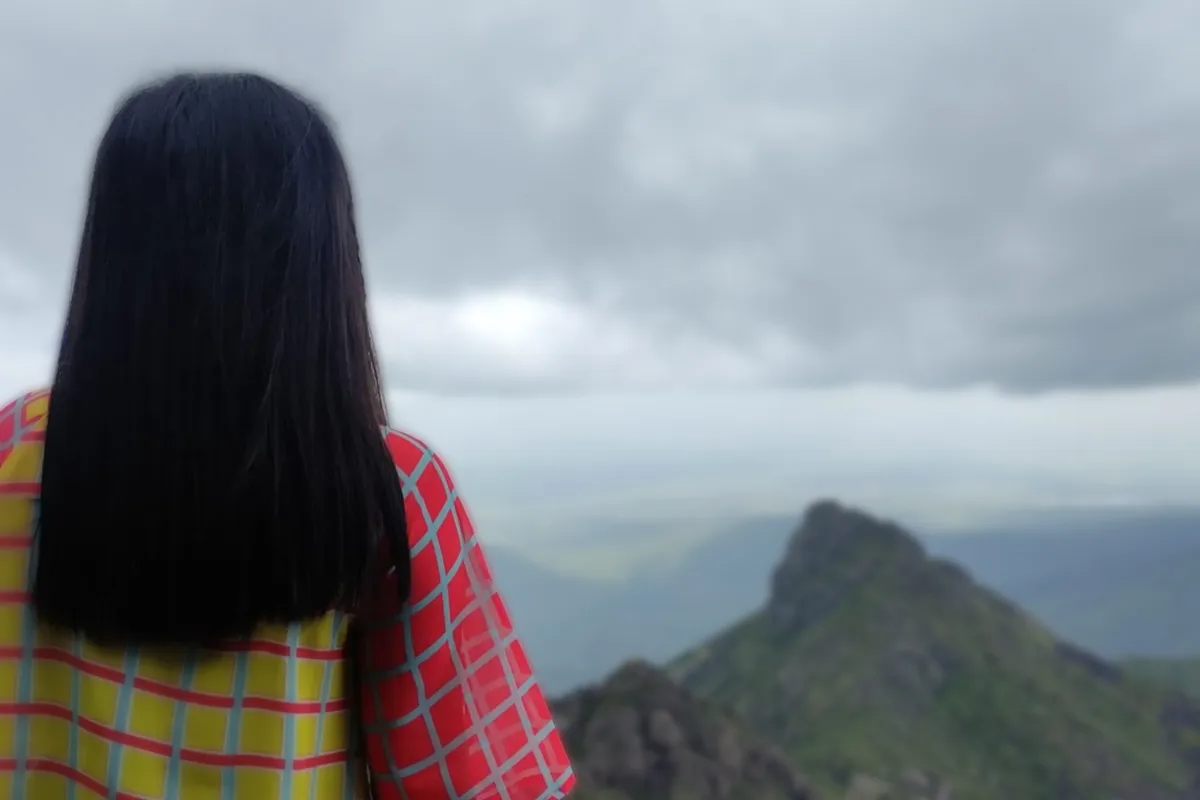
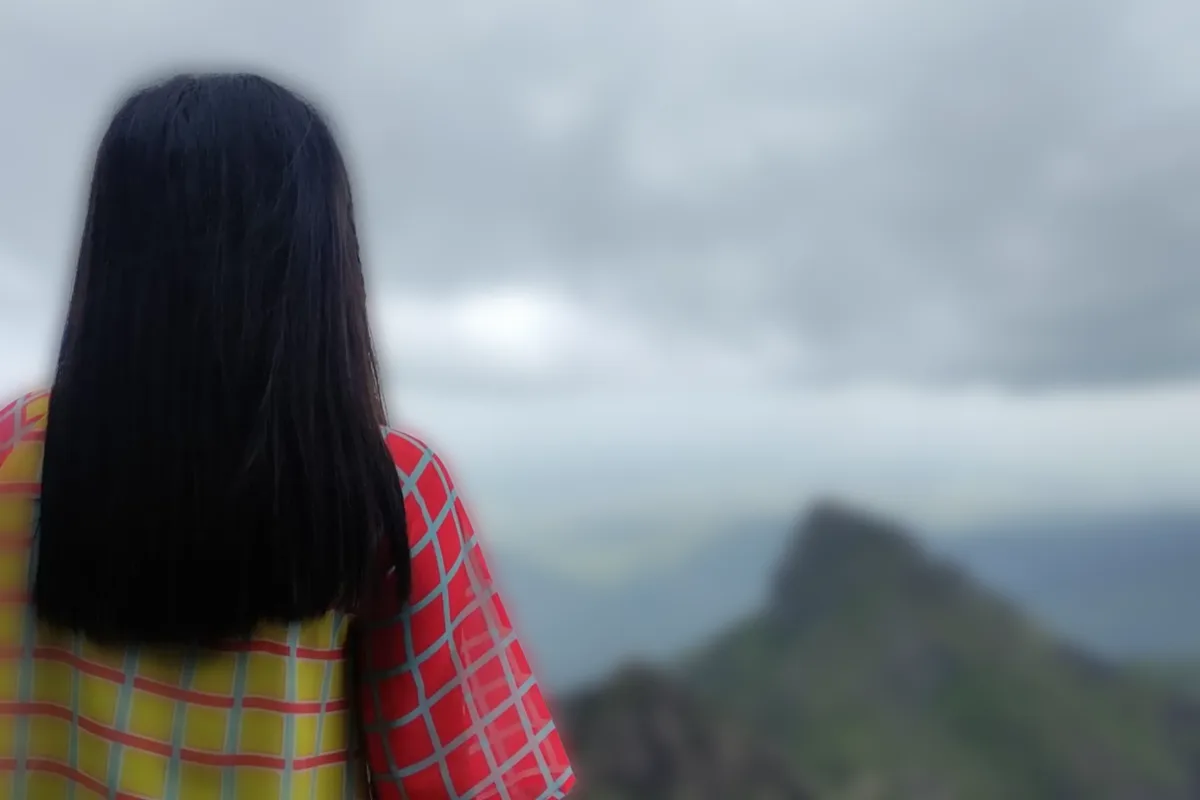
CutLift first finds the subject, then blurs only what sits behind it. Hair and shoulders stay crisp because the blur never touches them. Pulled apart, the two layers show it.

Live demo01 / 02

03How it works

Three steps. Seconds.

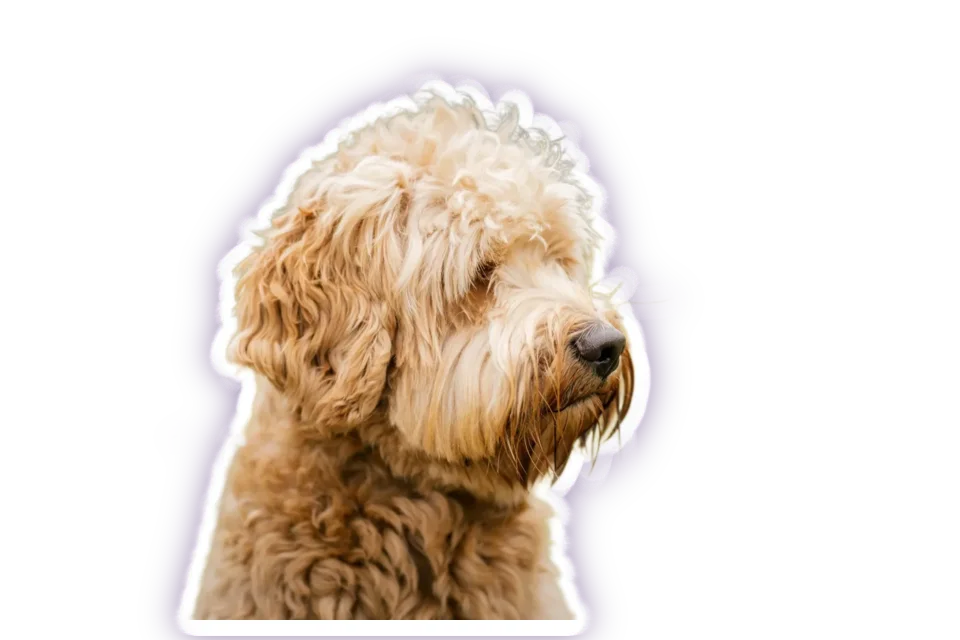
  1. 01Open a photoPortraits, pets and products work best.
  2. 02Choose Blur backgroundThe AI selects the subject and blurs the rest. Pick how strong the blur is.
  3. 03DownloadSave the result as a layered PSD, or export the subject as a transparent PNG or WebP.

04Why CutLift

Built to be the best one

  • Real subject detectionThe AI separates the subject, so hair and edges stay sharp.
  • AdjustableChoose how much blur, or add Gaussian or motion blur to any selection.
  • More than blurCurves, levels, colour and sharpening are all in the same editor.
  • PrivateYour photo is processed on your device.

Free and unlimited. CutLift Pro adds batch processing, upscaling, sky replacement and studio exports for $7.99/month.

05The guide

Portrait mode for any photo

Why blur the background

A blurred background pulls the eye to the subject. It hides a messy room behind a profile photo, separates a product from a busy shelf and gives pet and family photos the soft depth of field you get from a large camera lens. Many phones only offer portrait mode at the moment you take the shot. CutLift lets you add a background blur effect afterwards, to any photo.
How Blur background works

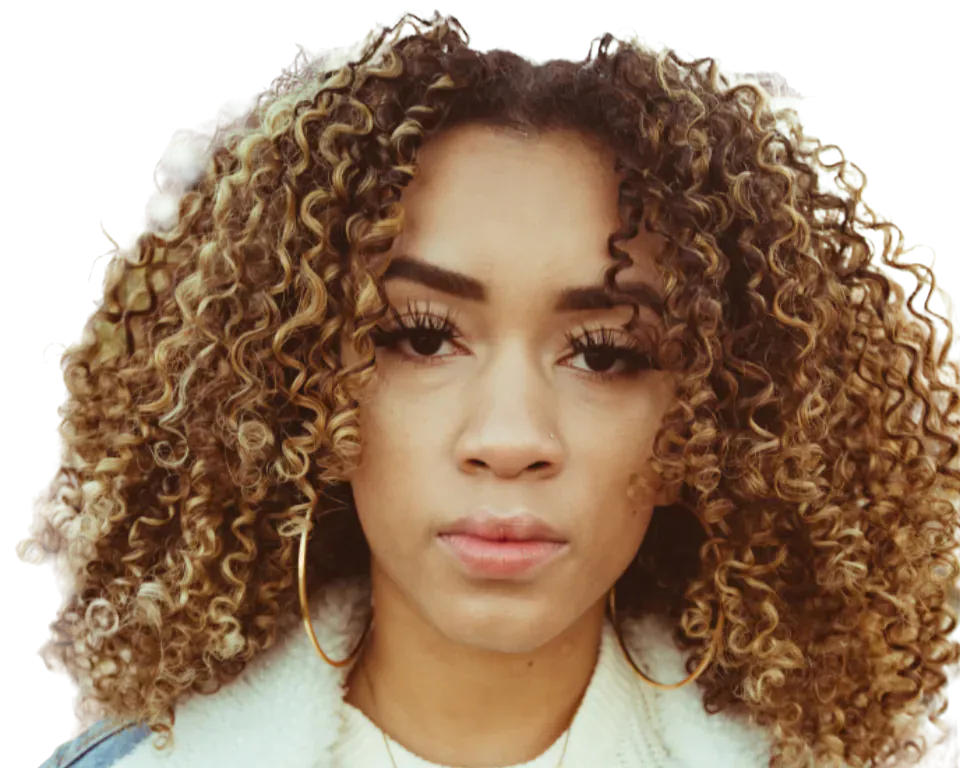
Open the photo and choose Blur background from the Blur section of the Filter menu, or search for it with Ctrl or ⌘ + K. The AI selects the subject, keeps it sharp and blurs the rest with a lens-style blur, so bright points become soft bokeh shapes.

Blur size sets how strong the effect is. Bokeh shape switches between round, hexagon and octagon highlights, and Light glow makes bright spots bloom like real out-of-focus lights. Keep sharp lets you choose which object stays in focus, or several selected objects at once. Depth falloff makes the blur grow gradually instead of switching on at the edge of the subject.

Getting a believable bokeh effect

Less is often more: a moderate blur looks like a real lens, while a very strong one can look cut out. Check the edge around hair and shoulders at full zoom. If part of the subject was blurred, select it as its own layer and choose it under Keep sharp. For a quick blur on just one area, Gaussian blur and motion blur also work on any selection.

For a group photo, select each person first and keep them all sharp together. For a product on a table, a little Depth falloff keeps the surface just behind it crisp, which reads as natural depth of field. If you want the background blurred and also changed, Cutout studio can place the subject on a softly blurred copy of the photo or on a plain colour instead.

Free and on your device

Background blur is part of the free editor, with no watermark. The photo is processed on your device, never uploaded. When you are done, export the finished image or save a layered PSD to keep working in other software.

06Questions

Good to know

How do I blur the background of a photo?

Open the photo in CutLift and choose Blur background from the menu or command palette. The subject stays sharp and the rest is blurred.

Blur the background, keep the subject sharp

Free to start. Your photo never leaves your device.

Open the editor

49 more tools

Keep going