


ProSky replacement

Swap a dull sky for a beautiful one

CutLift finds the sky, replaces it, and shifts the light of the rest of the photo so it all matches.

Drop your photo hereIt opens in the editor. Nothing is uploaded. Choose a photoJPGPNGWebPHEICPSDRAW

No photo? Try ours

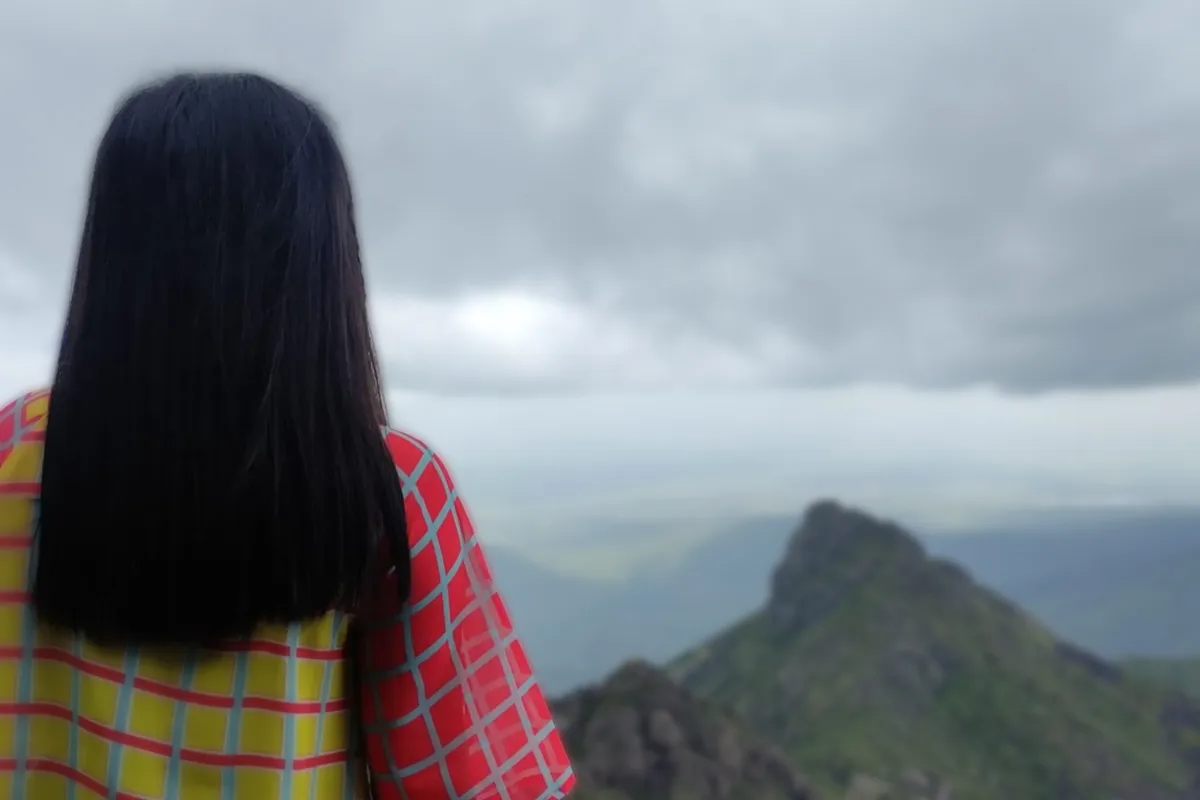
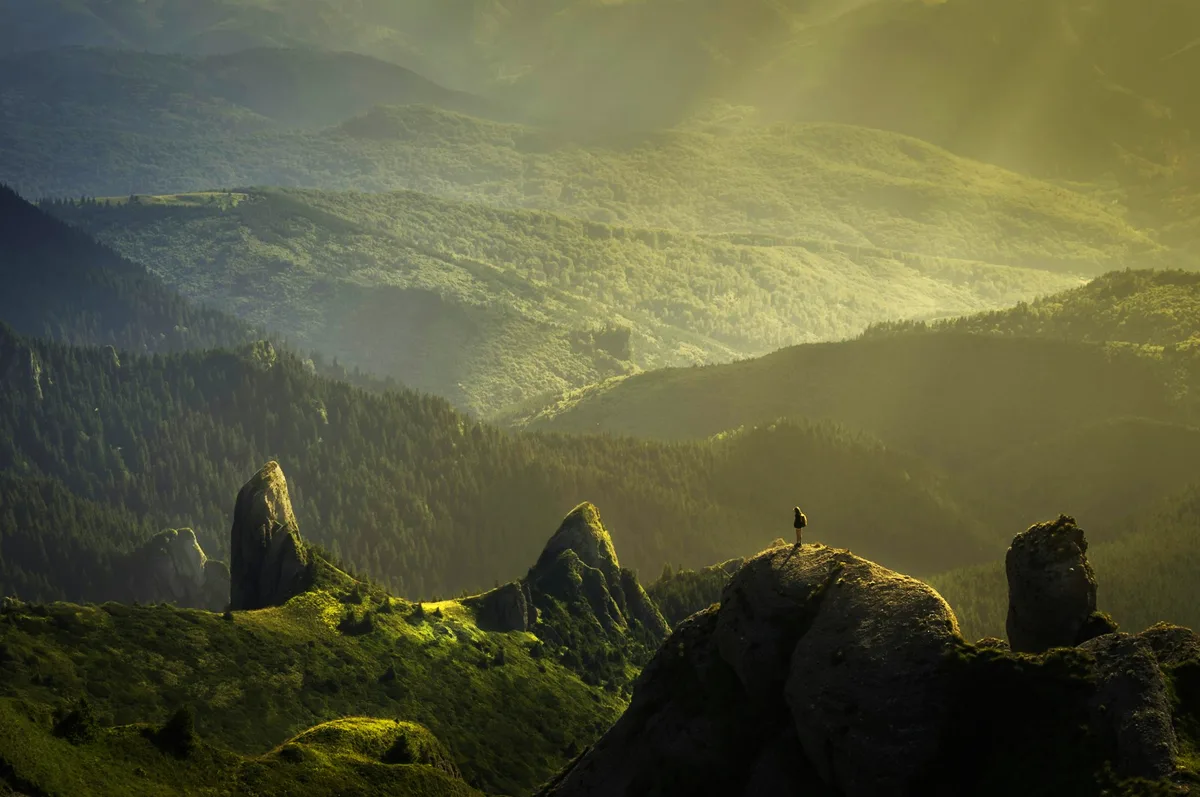
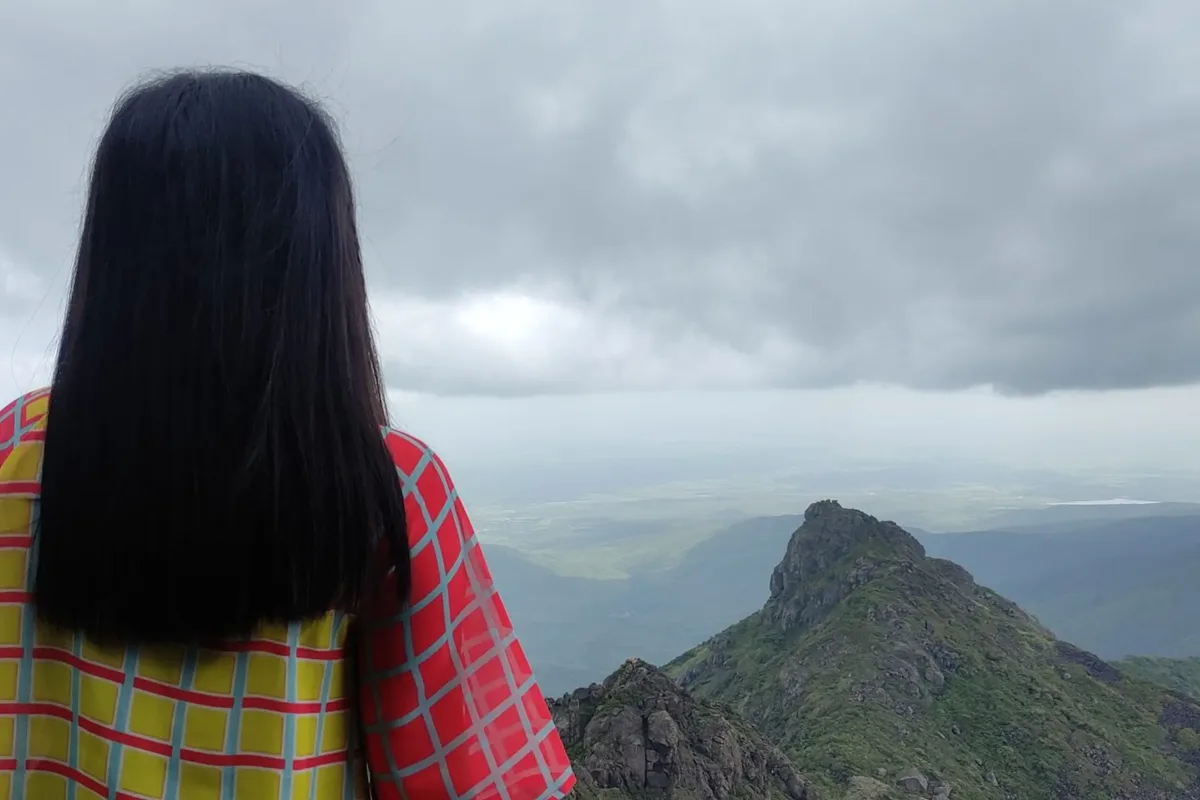
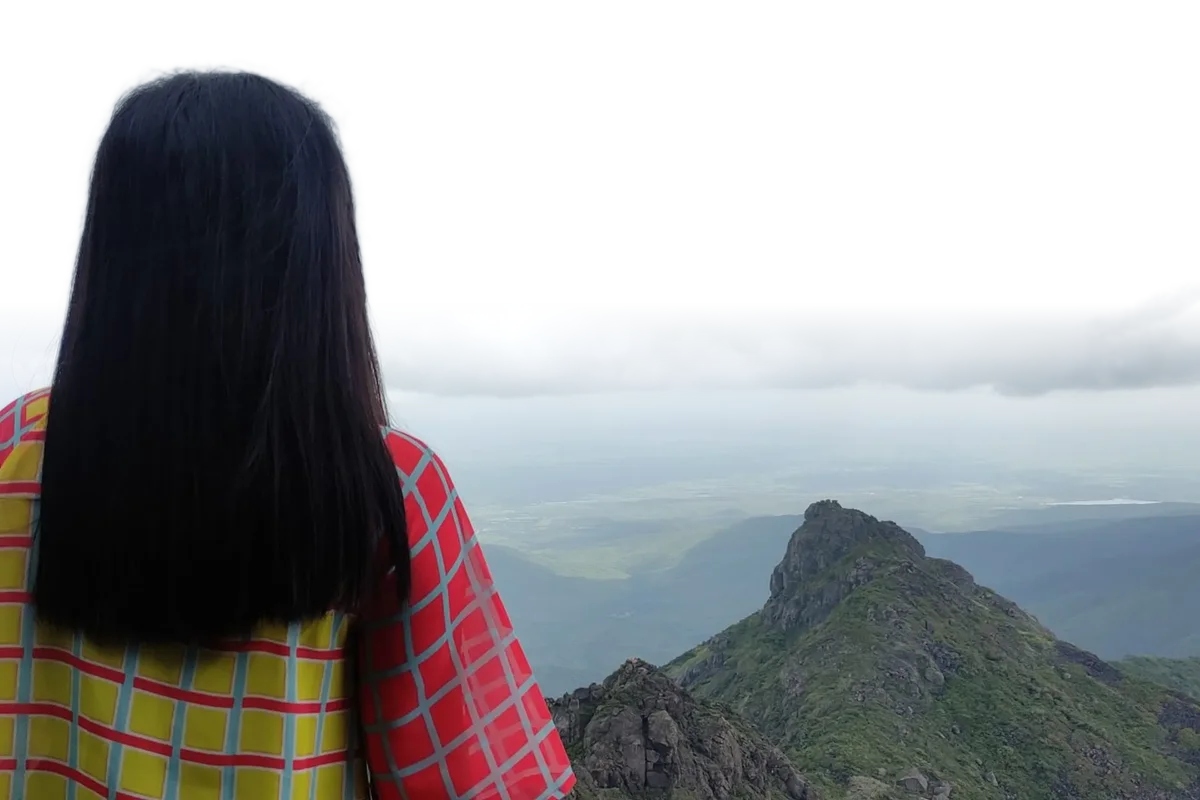
A woman looking out over mountains, with the sky replaced
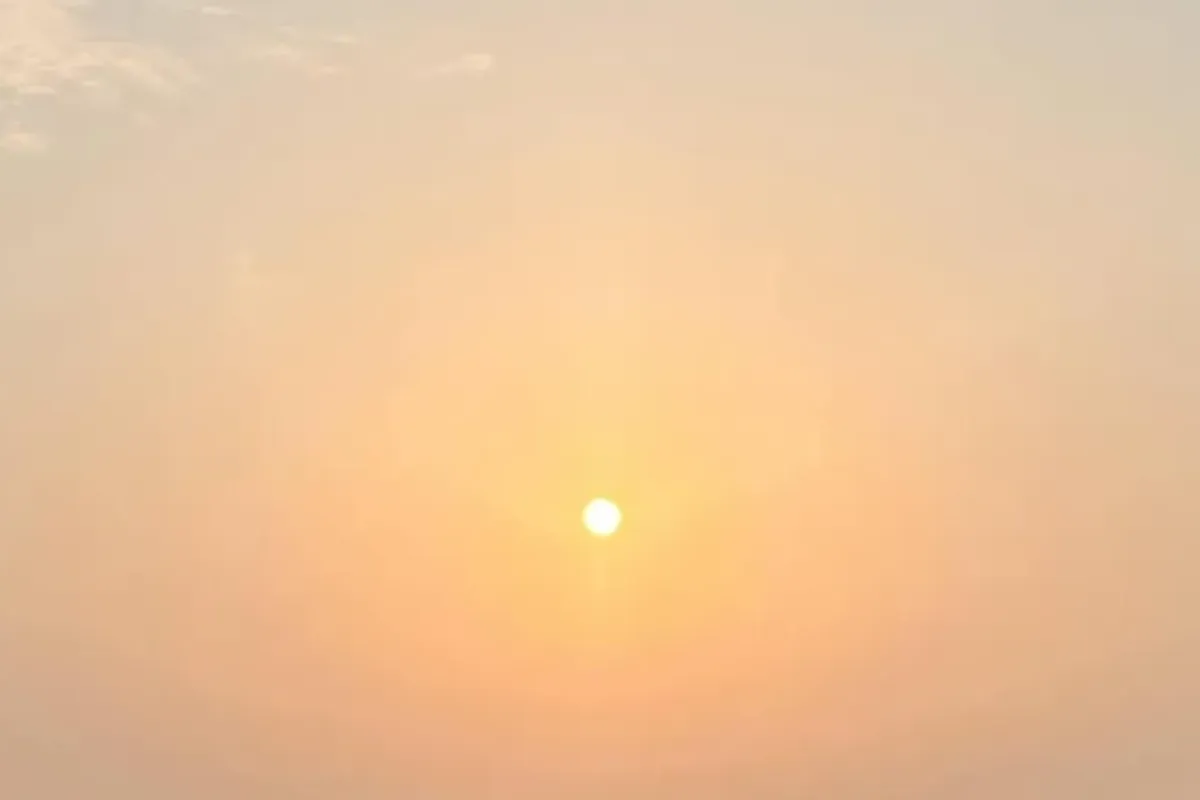
Sky: Golden hour
Live demo01 / 05

01The light follows

Same hill. Better evening.

A new sky alone looks pasted on. CutLift also warms or cools the rest of the photo to match, so the hills sit in the same light as the clouds.

A woman looking out over mountains, with the sky replaced
The same photo as shot, under a grey sky
As shotGolden hour
Live demo01 / 03

03How it works

Three steps. Seconds.

  1. 01Open a landscape or city photoAny photo with sky in it.
  2. 02Choose Replace skyPick a new sky; the AI masks the old one.
  3. 03DownloadSave the finished photo.

04Why CutLift

Built to be the best one

  • Automatic sky maskTrees, buildings and horizons are kept.
  • Matching lightThe rest of the photo takes on the new sky’s colour.
  • PrivateRuns on your device.
  • Part of CutLift ProTry it free while you edit.

This is a CutLift Pro feature: $7.99/month plus tax where it applies, cancel anytime. Use it free while you edit; your first premium download is free.

05The guide

Replacing a sky well

Why change the sky in a photo

A flat white or grey sky can make a good photo look dull. Estate agents and property photographers use sky replacement so houses look as they do on a fine day. Travel and landscape photographers swap the sky on a shot taken at the wrong hour, and anyone can turn an overcast holiday picture into a sunset sky photo. CutLift does the masking and the colour matching for you.

Choosing a new sky

Open the photo and choose Replace sky from the AI menu. The AI finds the sky, including the gaps between branches and around rooftops. Then pick a new one: Clear blue, Golden hour, Sunset, Dusk, Overcast or Night with stars. You can also use your own sky photo as a JPEG, PNG or WebP file.

Three sliders finish the sky swap. Light match tints the rest of the photo with the new sky’s colour, so a sunset makes the buildings warm too. Sky brightness balances the sky against the land, and Horizon haze softens the join where they meet, like real air.

Tips for a realistic result

Choose a sky that matches the light already in the photo. If shadows are short and sharp, a midday sky looks right, while long soft shadows suit golden hour or dusk. Keep Light match moderate so faces and white walls do not turn orange. If the AI misses a patch of sky, select it yourself with Quick Selection, set its class to sky and open Replace sky again.

Water reflects the sky, so a lake or wet street under a new sunset may need a little warmth added with Image ▸ Adjustments to look right. Photos taken in strong haze or fog usually look best with Overcast or Golden hour rather than a deep clear blue. When you use your own sky photo, pick one shot from a similar angle and height as the original, so the clouds sit at a believable scale.

Pro, with a free trial download

Sky replacement is a CutLift Pro feature. Use it free while you edit and compare skies as much as you like; downloading the finished photo needs Pro or your account’s one free premium download. It runs on your device, and your photos are not uploaded.

06Questions

Good to know

Is sky replacement free?

Sky replacement is a CutLift Pro feature. You can try it free in the editor, and your first premium download is free.

Swap a dull sky for a beautiful one

Free to start. Your photo never leaves your device.

Open the editor

49 more tools

Keep going