ProUpscaler

Upscale photos 2× and 4× with AI

Make small, soft photos larger and sharper. Great for old pictures, web images and cutouts you need bigger.

Drop your photo hereIt opens in the editor. Nothing is uploaded. Choose a photoJPGPNGWebPHEICPSDRAW

No photo? Try ours Upscaling is part of CutLift Pro. Try every Pro feature free while you edit.

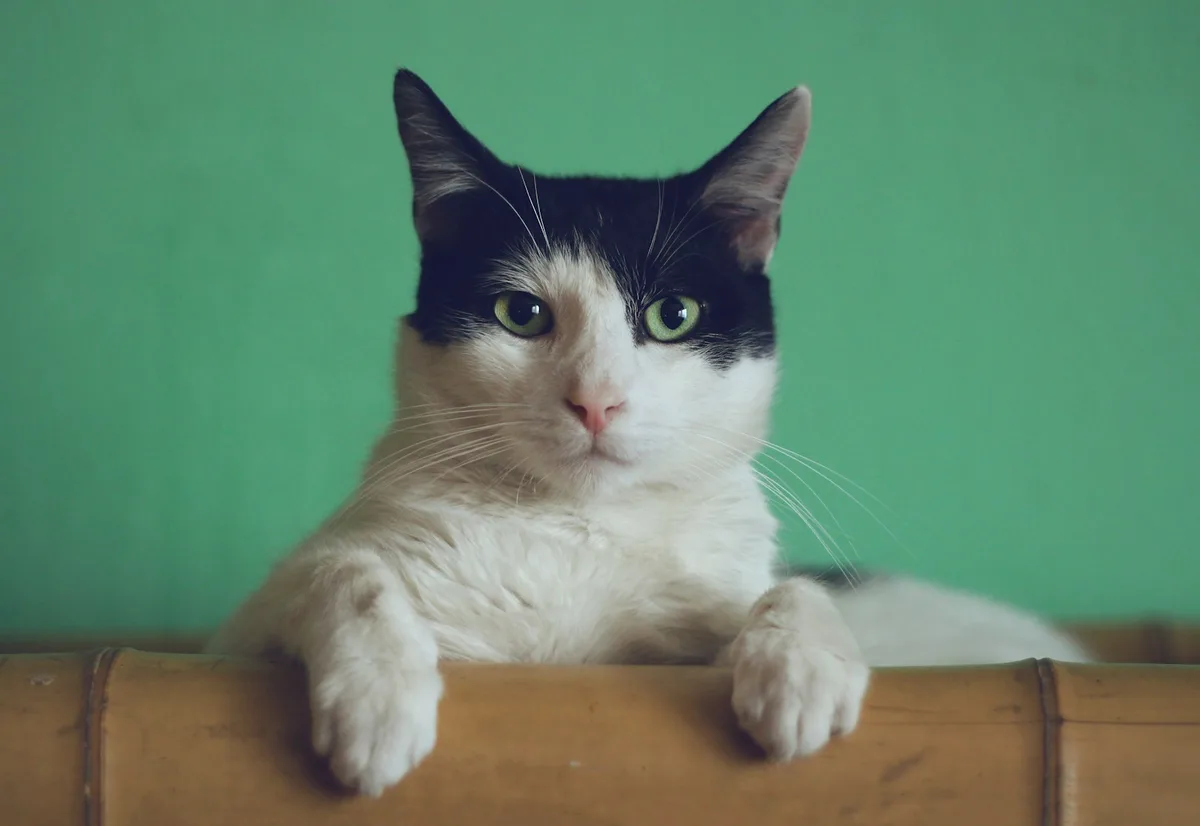
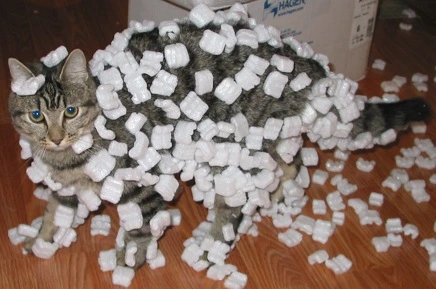
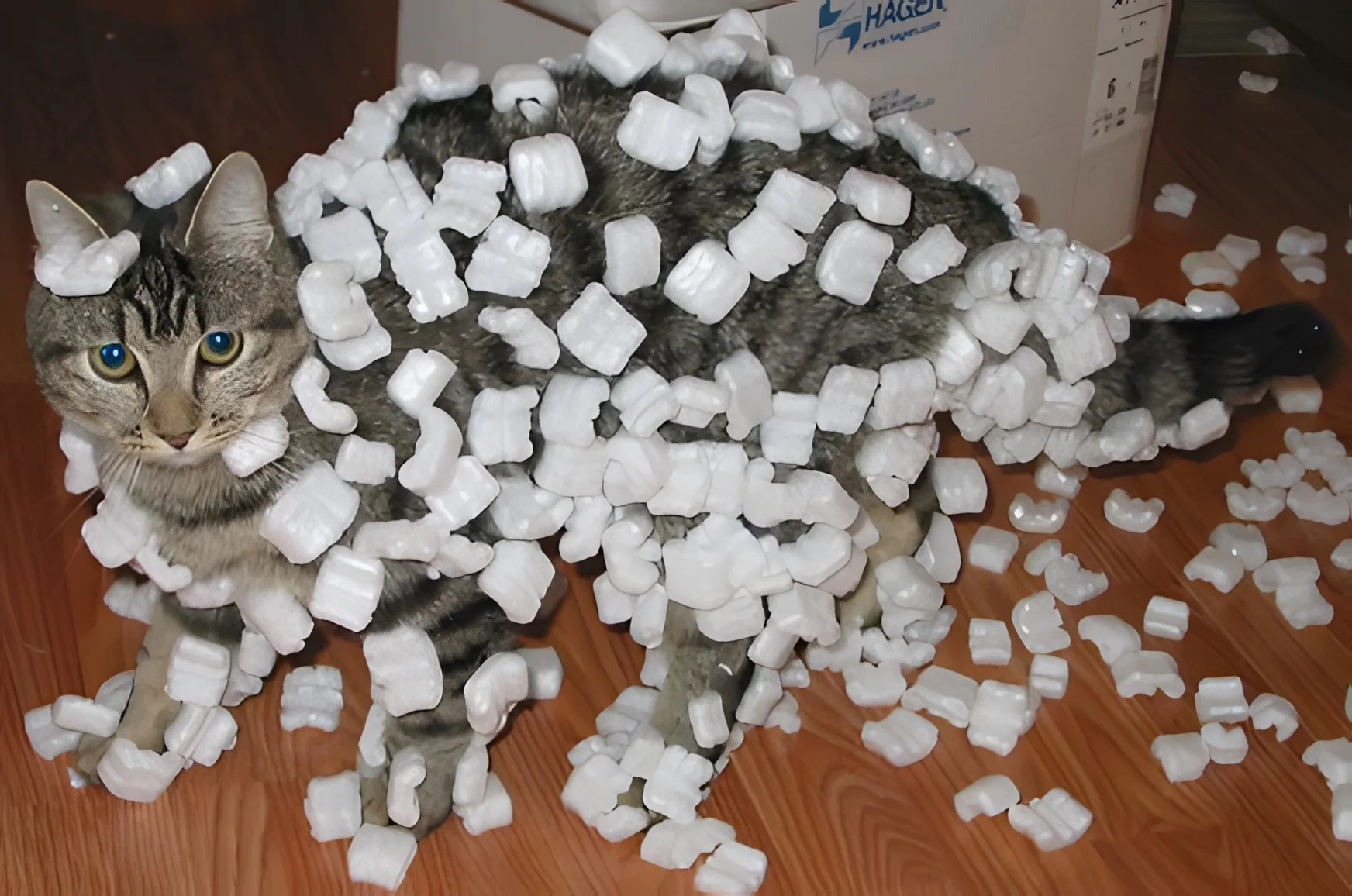
The original: a small 436 by 289 pixel photo of a cat covered in styrofoam peanuts, blown up and blockyThe same cat upscaled 4 times: sharp fur, whiskers and eyesoriginal · 436 × 289
4×

The lens shows the upscaled pixels

Photo: Sean McGrath, CC BY 2.0, via Wikimedia Commons.

Live demo01 / 04

01True to scale

Same photo, 16× the pixels

Each frame is drawn at its real size next to the others. Each size shows the photo at that resolution.

Upscale ×4

1744 × 1156

2,016,064 pixels, 16× as many as the original.

Live demo01 / 02

03How it works

Three steps. Seconds.

  1. 01Open a photoAny size, any format.
  2. 02Choose Upscale ×2 or ×4The AI adds detail as it enlarges.
  3. 03DownloadSave the larger image.

04Why CutLift

Built to be the best one

  • Sharper, not just biggerAI rebuilds edges and texture instead of stretching pixels.
  • PrivateUpscaling runs on your device.
  • Works on cutoutsUpscale a transparent cutout and keep its transparency.
  • Part of CutLift ProTry it free while you edit; downloading upscaled images is part of Pro.

This is a CutLift Pro feature: $7.99/month plus tax where it applies, cancel anytime. Use it free while you edit; your first premium download is free.

05The guide

Upscaling done right

When to upscale an image

An image upscaler helps when a picture is too small for the job: a product photo from a supplier that looks soft on a large screen, an old family photo scanned at low resolution, a logo pulled from a website, or a cutout that needs to fill a banner. Simply stretching the image makes it blurry. The AI upscaler in CutLift redraws edges and texture as it enlarges, so the photo looks sharper as well as bigger.
Using Upscale in CutLift

Open the image and choose Upscale from the AI menu. Pick ×2 or ×4. You can upscale the whole photo, or just a cutout on the active layer, which keeps its transparent background. A preview shows the result before you save it.

The upscaler works on images up to 1200 pixels on the long side. That covers the small, soft pictures that benefit most. A photo that is already larger is usually sharp enough for most uses, and you can crop to the part you need first if you want to enlarge a detail.

Tips for better enlargements

Clean up first, then enlarge. Remove dust with the Spot Healing Brush and reduce heavy noise before you increase the image resolution, because the upscaler treats noise as detail. Crop away anything you do not need so all the extra pixels go to the subject. For a product, upscale the cutout and place it on a background afterwards.

Choose ×2 when a picture is only slightly too small, for example a web image you want to print at a modest size. Choose ×4 for thumbnails, small icons and old photos where you need a much larger image. Compare both in the preview: on a very soft source, ×2 sometimes looks more natural. After upscaling, a light touch of Sharpen or Clarity from the Filter menu can finish the result.

Free to try, part of Pro

Upscale ×2 and ×4 is a CutLift Pro feature. You can try the photo enhancer free while editing and compare the result, and your account’s first premium download is free. After that, Pro is $7.99 a month or $47.99 a year. Upscaling runs on your device, so the images you enhance are never uploaded.

06Questions

Good to know

How much can I upscale?

Two or four times the original width and height.

Upscale photos 2× and 4× with AI

Free to start. Your photo never leaves your device.

Open the editor

49 more tools

Keep going