FreeTransparent PNG

Make any image background transparent

Turn a photo or logo into a PNG with a see-through background: for slides, stickers, logos, product shots and designs. Free, unlimited, and your photos never leave your device.

Drop your photo hereIt opens in the editor. Nothing is uploaded. Choose a photoJPGPNGWebPHEICPSDRAW

No photo? Try ours

background 100%
Slide
T-shirt
Photo
Dark mode

See the white box on every surface?

Live demo01 / 04

01Drop it anywhere

Move the PNG.
No box. Ever.

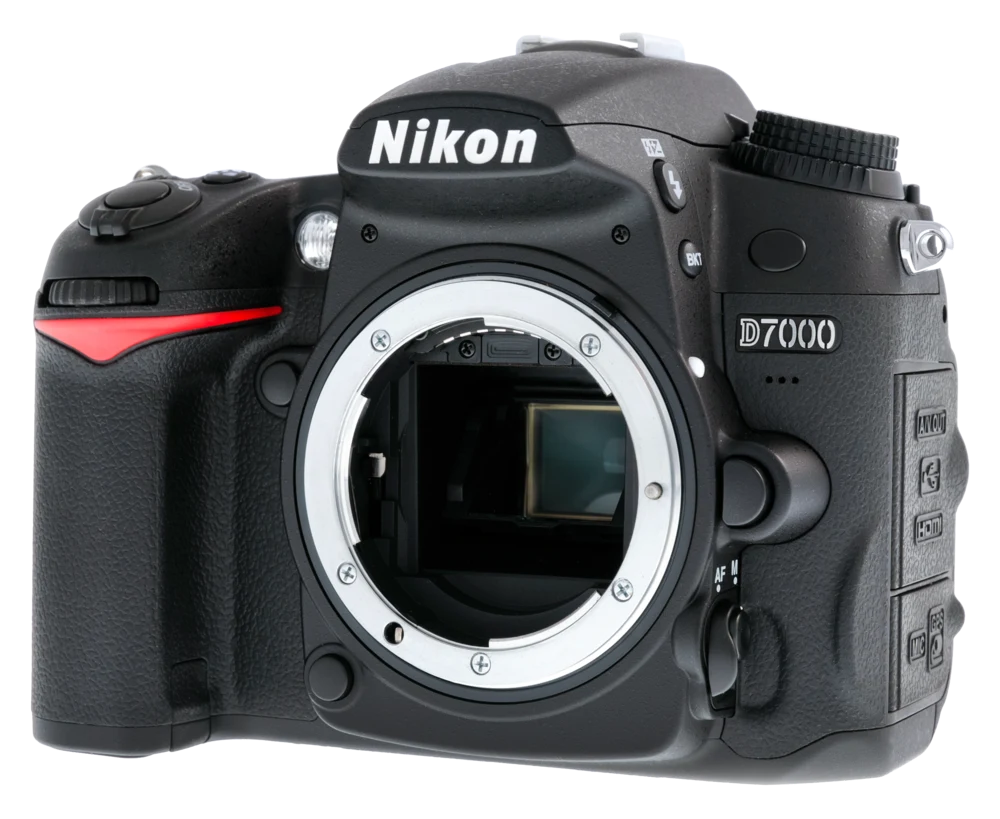
A transparent image carries its own see-through pixels. The same camera, across four very different places.

Slide deck
Merch
Photo
Dark UI
On: Slide deck
Live demo01 / 04

Same PNG, every background.

03How it works

Three steps. Seconds.

  1. 01Open your imagePhotos, screenshots, logos and graphics all work.
  2. 02Remove the backgroundAI removes it in one click, or use Colour Range to drop a plain white or solid background.
  3. 03Save as PNGDownload a transparent PNG or WebP that drops cleanly onto anything.

04Why CutLift

Built to be the best one

  • Logos and graphics tooColour Range removes white or solid backgrounds, leaving clean edges.
  • No quality lossYour image keeps its full resolution. Nothing is compressed by a server.
  • Private by designEverything happens on your device. Nothing is uploaded.
  • Fix any edgeBrushes, lassos and edge tools let you correct the cutout by hand.

Free and unlimited. CutLift Pro adds batch processing, upscaling, sky replacement and studio exports for $7.99/month.

05The guide

Making a clear background

Why you would want a transparent image

A transparent PNG drops onto any colour or design without a white box around it. That is what you want for a logo on a website header, a signature on a document, a product on a coloured banner or a graphic in a presentation. Turning an image into a PNG with a clear background takes a minute in CutLift.

Photos or graphics: pick the right tool

For photos of people, animals or objects, use Remove background from the AI menu. The AI finds the subject and removes everything behind it.

For logos, icons, scanned drawings and screenshots, Colour Range usually works better. Choose it from the toolbar (shortcut I), click the white or solid background, and every pixel of that colour is selected at once. Shift-click adds more shades, Alt-click removes some. Delete the selection and you have a clean transparent image. This is the quickest way to remove a white background from a logo, and it keeps holes, such as the inside of letters, clear too.

The Magic Wand (W) is useful when only the connected part of a colour should go.

Clip art and scans with several background colours can take two passes: remove the main colour first, then click the remaining shade. Anything the tools leave behind is easy to tidy with the Eraser.

Getting the edges right

Zoom in on the edge after removing the background. Use the Brush to add back anything that was lost and the Eraser to take away leftover pixels. Feather softens a hard outline slightly, and Refine edges snaps the mask closer to the real edge. If a soft edge still shows a pale halo, Clean edge colours in Cutout studio removes the background colour fringing. That option is part of CutLift Pro.

Which format to save

Save as PNG for the widest support, or WebP for a smaller file on the web. Both keep transparency, while JPEG always fills the background with a solid colour. Your image keeps its original size, nothing is recompressed on a server, and the whole job happens on your device. Downloads of a transparent PNG are free with a free account and carry no watermark.

06Questions

Good to know

How do I remove a white background from a logo?

Open the logo, choose Colour Range, click the white area and delete it. Then download as PNG.

Make any image background transparent

Free to start. Your photo never leaves your device.

Open the editor

49 more tools

Keep going